

Slow Prototyping? How a Desktop CNC Speeds Up Production
If your prototype cycle takes a week or more, the delay often starts before cutting. Quotes, shop back-and-forth, setup resets, and shipping can push one outsourced CNC part to 5–10 business days, and rush work can add 30%–50% to the price.
I see the main point like this: a desktop CNC cuts wait time by keeping design, machining, and recuts in one place. That means:
- same-day iteration instead of another vendor cycle
- 1–2 hours of setup instead of 4–8+ hours
- 2%–5% scrap instead of 10%–15% from setup mistakes
- 1–7 second tool changes with an ATC instead of long manual stops
- 30%–84% less cycle time on multi-face parts when one setup replaces several
This article breaks down the three main options - outsourcing, manual fabrication, and desktop 5-axis CNC - and looks at what changes production time most: fixturing, probing, tool changes, material choice, and single-setup machining.
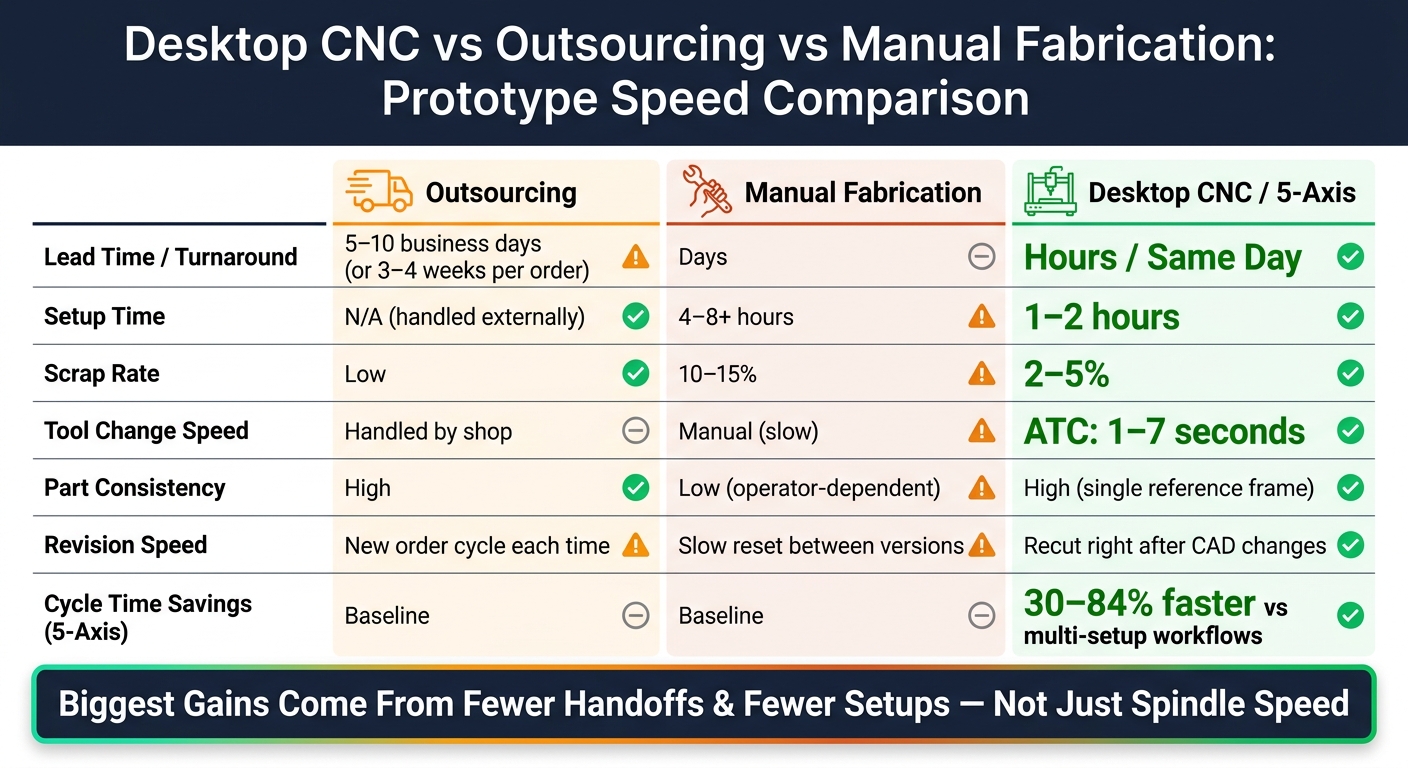
Desktop CNC vs Outsourcing vs Manual Fabrication: Prototype Speed Comparison
Quick Comparison
| Factor | Outsourcing | Manual Fabrication | Desktop CNC |
|---|---|---|---|
| Lead time | 5–10 business days or more | Days | Hours / same day |
| Revisions | New order cycle each time | Slow reset between versions | Recut right after CAD changes |
| Setup time | N/A | 4–8+ hours | 1–2 hours |
| Consistency | High | Lower; depends on re-clamping | High; one reference point |
| Tool changes | Handled by shop | Manual | ATC: 1–7 seconds |
| Scrap rate | Low | 10%–15% | 2%–5% |
In short, I’d say the fastest gains come from fewer handoffs and fewer setups - not just from the spindle cutting faster.
How a Desktop CNC Speeds Up In-House Production
A desktop CNC turns revisions into same-day work instead of kicking off another outside vendor cycle. The big win is simple: design, machining, and revision all happen in the same shop. Once the machine is on-site, the main wait is the cut itself. That becomes a big deal when a design changes right after the first fit check.
From CAD File to Machined Part on Your Schedule
Outsourced CNC prototypes often come with a 3–4 week lead time for each order. With an in-house desktop CNC, you can make a test part that same day. Update the CAD file, regenerate the toolpath, load the stock, and you can start cutting within hours.
If a fit check fails, you don’t have to sit around waiting on another vendor round. You revise the file and cut the part again right away. Built-in CAM can generate toolpaths from STEP or STL files in under a minute.
Farm Design added a desktop CNC to its prototyping process in December 2024. The team used it to make, test, revise, and remake brass parts in one week instead of waiting 3–4 weeks for outsourced orders.
Materials That Speed Up Prototyping
Material choice affects cycle time too.
| Material | Best Use | Key Advantage |
|---|---|---|
| Aluminum 6061 | Brackets and robot parts | Fast for structural prototypes |
| Brass | Fine-detail mechanical parts | Good for fine detail and tight tolerances |
| Wood / MDF | Form studies, rapid batches | Fast, low-cost form studies |
| Acrylic | Fit-check enclosures | Makes clearances easy to inspect |
Aluminum 6061 works well for most functional prototypes. Brass is a good fit for small mechanical parts with fine detail. Wood and MDF help with form studies and quick batches, while acrylic makes visual fit checks easier.
Fast-cutting materials help, but repeatable setup and smooth tool changes save even more time.
What Actually Cuts Setup and Iteration Time
Repeatable Fixturing and Workholding Cut Reset Time
Most prototype delays don't come from cutting. They come from setup.
That's why fixturing and automation do so much to shrink revision time. If you use dowel pins, fixture stops, and modular clamps, you can put stock back in the same zero point every time. That means you can rerun the same program with very little reset work.
Each manual re-clamp adds about ±0.0002 inches of alignment error, and those small misses stack across setups. With a fixed reference point on the bed, setup time can drop from hours to 1–2 hours per job. Just as important, the same locating system lets the next revision start right away. No re-probing from scratch. No dead time between iterations.
Toolpath Efficiency, Probing, and Auto Tool Changes Save Labor
Fixture design is only part of the story. Your CAM strategy matters just as much.
If you cluster holes, pockets, and critical features on one face of a part, you can machine everything in a single setup - a part machined in one setup. That cuts human error and setup time by up to 60% compared to flipping and re-clamping a part several times.
Automated probing picks up from there. Instead of setting Z-height by hand before each run, a probing routine checks tool length and workpiece surface on its own. That removes one of the most common sources of inconsistency in multi-step prototype jobs and helps keep a changed CAD file moving toward same-day turnaround.
Automatic tool changers (ATCs) push the time savings even further. Modern desktop systems can finish a full tool swap in 1–7 seconds, which is up to 70% faster than stopping to change bits by hand. On complex parts, that can save 30–60 minutes per job.
These workflow gains are a big reason in-house desktop CNC can move faster than outsourcing or hand fabrication.
Desktop CNC vs. Outsourcing vs. Manual Fabrication
Comparison Table: Turnaround, Revisions, Consistency, and Labor
Here’s how the three main paths stack up when prototype speed is the main concern:
| Factor | Outsourcing | Manual Fabrication | Desktop CNC (5-Axis) |
|---|---|---|---|
| Turnaround / Iteration Speed | 3–4 weeks; every change restarts the clock | Days; manual rework slows each revision | Hours / same day; update CAD and recut |
| Part Consistency | High (professional shop) | Low (operator-dependent) | High (single reference frame) |
| Labor Demand | Low - managed externally | Very high - constant attention | Moderate - CAD/CAM setup and monitoring |
| Setup Time | N/A | 4–8+ hours | 1–2 hours |
| Scrap Rate | Low | 10–15% (setup errors) | 2–5% |
The big draw of a desktop CNC is simple: you can go from an updated CAD file to a newly cut part that same day. That gap gets even bigger on parts with features across several faces, because every extra re-clamp adds both time and the chance of error.
Where a Compact 5-Axis Machine Changes the Math
A standard 3-axis desktop CNC can handle a lot, but parts with features on more than two faces usually need multiple setups. That’s where things start to drag. Each re-clamp adds about ±0.0002 inches of alignment error, and those small misses stack up over time. A 5-axis machine sidesteps most of that by machining complex geometry in a single setup. In practice, one setup can cut human error and setup time by up to 60% compared to multi-setup workflows.
The time savings don’t stop there. Compact 5-axis desktop systems can reduce cycle times by 30–84% versus multi-setup workflows by cutting down re-clamping, keeping parts in one reference frame, and using automatic tool changes that finish in 1–7 seconds. By contrast, basic desktop routers still need you to stop and swap bits by hand. A 5-axis machine with an ATC keeps the cut moving, which means fewer pauses, fewer handoffs, and faster recuts.
That’s the workflow TF500 is built to shrink into a desktop footprint.
Where TF500 Fits and What a Faster Workflow Looks Like
TF500 Features That Directly Shorten Prototype Cycles
Those 5-axis gains pay off most when you can keep prototype work in-house. That’s where the TF500 starts to make a clear difference. It can machine multi-face parts in a single setup, which cuts cycle times by 30% to 84% compared with older workflows that need several setups.
The 8-tool automatic tool changer also helps trim downtime. It swaps tools in 1 to 7 seconds, so the machine spends less time sitting idle between passes. On top of that, automated Z-probing and tool length detection take away one of the most common causes of manual setup mistakes.
When setup gets shorter, software starts to matter just as much as hardware. One-click toolpath generation works with STL, STEP, and DXF files, then auto-matches feeds and speeds to the material and tool selection. In plain terms, that means less fiddling before you can start cutting. The built-in HD camera and remote status tracking make it easier to watch small batches without pausing production to check on them. That’s the kind of thing that trims the revision loop.
The enclosed design is another practical detail. It keeps chips and coolant contained, which makes the TF500 a good option for a home shop or studio.
Conclusion: Fewer Handoffs and Fewer Setups Are the Fastest Gains
The biggest time savings usually come from cutting out handoffs, reducing setups, and making recuts faster. In some cases, that can move precision-part lead times from weeks to under 24 hours. For that reason, TF500 makes sense for multi-face fit-check parts, functional aluminum or brass prototypes, and small-batch runs.
FAQs
When does a desktop CNC make more sense than outsourcing?
A desktop CNC makes more sense than outsourcing when you need fast iteration for prototyping, design validation, or small-batch runs where turnaround time matters more than industrial-scale throughput.
Bringing production in-house cuts out the usual 3-to-4-week lead times. That means you can design, cut, test, and revise parts in a matter of hours. You also get direct control over the process and much faster feedback, which helps shorten development cycles and avoid moving into larger-scale manufacturing too early.
Do I need a 5-axis machine for faster prototyping?
No. You don't need a 5-axis machine for every prototype.
For many parts, an optimized 3-axis workflow is faster. That can mean using single-setup fixturing, multi-piece nesting, and efficient toolpaths to cut setup time and keep the job moving.
A 5-axis machine matters more when the part has complex curves, deep undercuts, or features that would otherwise need multiple manual flips and repositioning.
What materials are best for quick prototype runs?
The best material depends on what you're trying to test.
For low-cost form and fit checks, go with soft, easy-to-machine materials like wood, foam, wax, or epoxy tooling board. They’re a good pick when you just need to confirm size, shape, and basic assembly.
For functional testing, use machinable materials that are closer to the final part, such as 6061 aluminum, ABS plastic, or brass. Save harder materials like stainless steel for final durability testing.


